
Tips and Tricks
How to Stop App Tracking on iPhone: Complete Privacy Guide
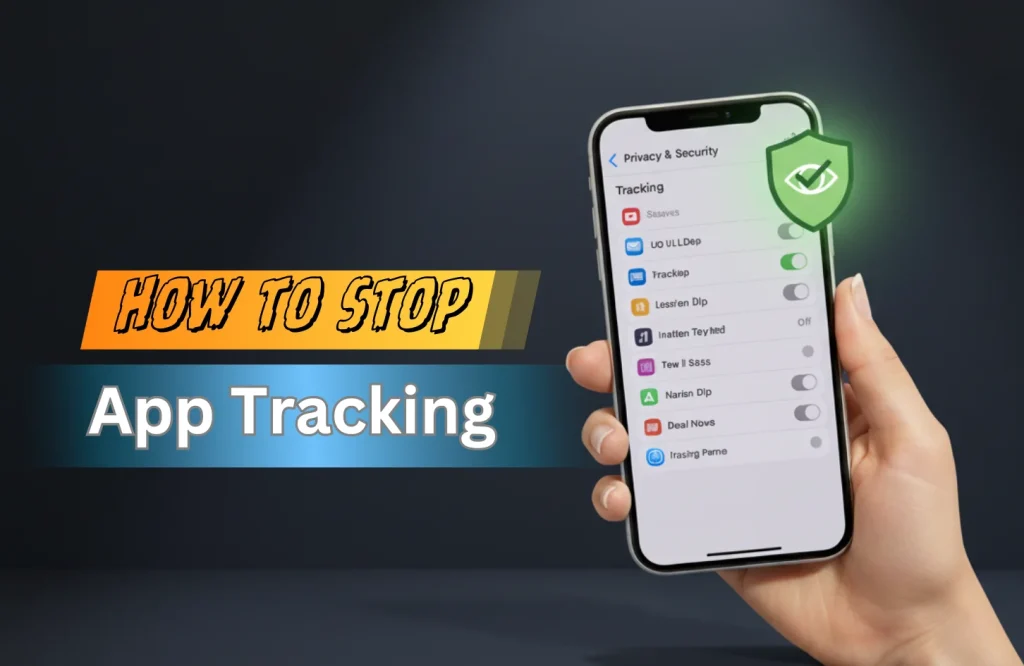
Your iPhone knows a lot about you that you might not even know. Every day, a lot of apps gather information about where you are, what you buy, and what you like. Some tracking is useful for apps, but most of it is for advertisers that want to learn more about you and sell you things. The good news is Apple has given iPhone owners strong options to protect their privacy again.
This full guide will teach you all you need to know about stopping app tracking on your iPhone, keeping your private information safe, and what happens when you turn these features off.
Understanding App Tracking on iPhone
When firms collect information about what you do on different applications and websites, this is called app tracking. Then, this information is used to construct thorough profiles about you that are often used to show you adverts that are relevant to you. Apps may remember what you look at, buy, go, and even how you use other apps.
Apple included App Tracking Transparency (ATT) from iOS 14.5.That means whenever you download and install an app, they will ask for permissions before tracking your data. You now have complete control over your digital privacy with this new function
How to Turn off iPhone Spying
Apple has made it easy to turn off tracking via apps on all devices. To block any app tracking you, this is what you can do:
Step 1: Access Privacy Settings
On your iPhone, go to the Settings app, then scroll down and enter Privacy & Security. This section in settings lets you control all your Apple device’s privacy settings.
Step 2: Disable App Tracking
To see which items are tracking your data, tapping the Privacy & Security menu will present a toggler that says “Allow Apps to Request to Track“. Toggle it off, the switch should become gray.
The apps on your Apple device can’t even ask for permission to track when you turn off this setting. It revokes permission from access to your device’s advertising identifier, hence any tracking rights already given are canceled instantly.
Step 3: Permit Individual Apps
If your aim is to be more selective, you can keep the “Allow Apps to Request to Track” switch on and control every individual app’s permissions. Right under the primary toggler, there should be a list of apps which you granted access (or permitted) for tracking your data. You just have to turn off the permission for any apps you don’t want to gather tracking data.
How to Disable App Tracking for Apps Already Downloaded
Before you knew about the privacy measures, and given all the access to the apps to follow you, don’t worry you can take the permission at any moment back.
Go to Settings, then Privacy & Security, and then Tracking. You’ll see a list of all the applications that have asked for permission to track you, along with switches that show which ones you’ve let do so. If an app has a green toggle, it is currently following you on other applications and websites.
To turn off tracking for any app, just tap the toggle next to it. It will change from green (tracking enabled) to gray (tracking disabled). The app will no longer be able to see your advertising identification right away, and it won’t be able to follow what you do on social platforms.
Turn Off iPhone Spying: Additional Privacy Measures
Your iPhone has other ways to keep an eye on your activity besides app tracking. This is how to close these possible privacy holes:
Disable Microphone Access
Some users are afraid that applications can hear what they say through their microphone. Apple’s permission mechanism stops unwanted access to the microphone, however you can check which apps have this permission:
Click on Settings > Privacy & Security, and > Microphone. You’ll see a list of all the apps that have asked for access to the microphone. Turn off any apps that don’t need this permission to work properly.
Manage Camera Permissions
To check camera access, go to Settings > Privacy & Security > Camera. Turn off camera access for any apps that don’t need it.
Control Photo Library Access
Limit which apps can access your photos. In Settings > Privacy & Security > Photos, you can choose to give apps access to all photos, selected photos only, or no photos at all. The “Selected Photos” option is ideal for most apps.
Disable Analytics Sharing
Apple and app developers use analytics data to make their products better. To lessen this:
Go to Settings > Privacy & Security > Analytics & Improvements and turn off the options to Share iPhone Analytics and Share iCloud Analytics.
Turn Off Personalized Ads
Apple runs advertising in the App Store and other services. To make these adverts less personal: To turn off Personalized Ads, go to Settings > Privacy & Security > Apple Advertising.
Stop Apps from Tracking You: Browser Settings
Another big way to track you is through your computer browser. The default browser on the iPhone, Safari, has strong privacy protections:
Enable Intelligent Tracking Prevention
Safari prevents a lot of trackers on its own, but you can make this protection even better: Go to Settings > Safari and make sure that Prevent Cross-Site Tracking is turned on (the toggle should be green). Also turn on For the best privacy, block all cookies, although this may make some websites not work right.
Clear Browsing Data Regularly
Every so often, delete your website data and browsing history: To clear your history and website data, go to Settings > Safari and scroll down. This deletes cookies, cached files, and other browsing data that could be used to track you.
Use Private Browsing Mode
Use Safari’s Private Browsing mode when you want to look at private information. To open a private browsing session in Safari, hit the tabs symbol and then tap Private. When you’re in private mode, your browsing history, cookies, and autofill information aren’t saved.
Stop Tracking Location: Location Services Management
To find Location Services, go to Settings > Privacy & Security. You will get a list of all the apps that have asked for access to your location. You can choose for each app
Review App Location Permissions
Go to Settings > Privacy & Security > Location Services. You’ll see every app that has requested location access. For each app, you can choose:
- Never: The app can’t find out where you are.
- Ask Next Time or When I Share: Every time the app needs permission, it has to ask.
- While Using the App: The app can access location only when open
- Always: The app can access location even when not in use (use sparingly)
To reduce tracking, set most apps to “While Using the App” or “Ask Next Time.” Some programs, such navigation or weather services, may need “While Using” access, but very few apps actually need “Always” access.
Disable Significant Locations
Your iPhone keeps track of the places you go a lot.
To turn this off: To find Significant Locations, go to Settings > Privacy & Security > Location Services > System Services. Turn this off so that your iPhone doesn’t learn your habits.
Manage System Services
Look at various location-based features while in System Services. Think about turning off:
- Analytics for iPhone: Stops Apple from getting location data
- Routing and Traffic: Stops sharing your location to improve Maps
- Suggestions Based on Location: Stops suggestions based on location Suggestions from Siri
What Happens When You Stop Tracking?
Knowing what will happen if you turn off tracking helps you choose the right privacy settings.
Changes in Ad Experience
The ads you view will change the most. You won’t see advertising that is very specific to your behavior on apps and websites. Instead, you’ll see more general ads. Some people like this better because the advertising don’t seem as annoying or creepy.
App Functionality
Without tracking permissions, most apps will still work normally. However, apps that rely significantly on ad revenue may, in rare situations, provide you a worse experience or keep asking you to turn on tracking. Some apps might even need permission to follow you in order to work, but this is rare and usually means that the app puts marketers ahead of users.
Free Services and App Economics
A lot of free apps make money by showing ads. When users turn off monitoring, such adverts become less valuable to advertisers, which might hurt the app’s income. But this is more of a problem for the whole industry than for individual users. Privacy is a basic right, and the app economy will change to protect users’ privacy while still being able to make money.
Improved Privacy and Peace of Mind
The best thing that has changed is knowing that your personal information isn’t being gathered, analyzed, and shared all the time. You’ll have more control over your digital footprint and be less likely to have your data stolen or your privacy violated.
Your gadget might also work a little better because tracking systems use up battery life and processing power
FAQ’s
How to stop apps from listening to my iPhone?
To stop apps from using your microphone without your permission, navigate to Settings > Privacy & Security > Microphone. This is a list of all the apps that have asked for access to the microphone. Turn off the switch for any app that you don’t want to be able to use the microphone
How to Know which apps are tracking?
There are a few ways to find out which apps are keeping an eye on what you do:
Check the permissions for tracking: Go to Settings > Privacy & Security > Tracking. Any app on this list has asked for permission to follow you around on other companies’ websites and applications. Apps with green switches are keeping an eye on you right now.