
Tips and Tricks
How to reset network settings on your iPhone
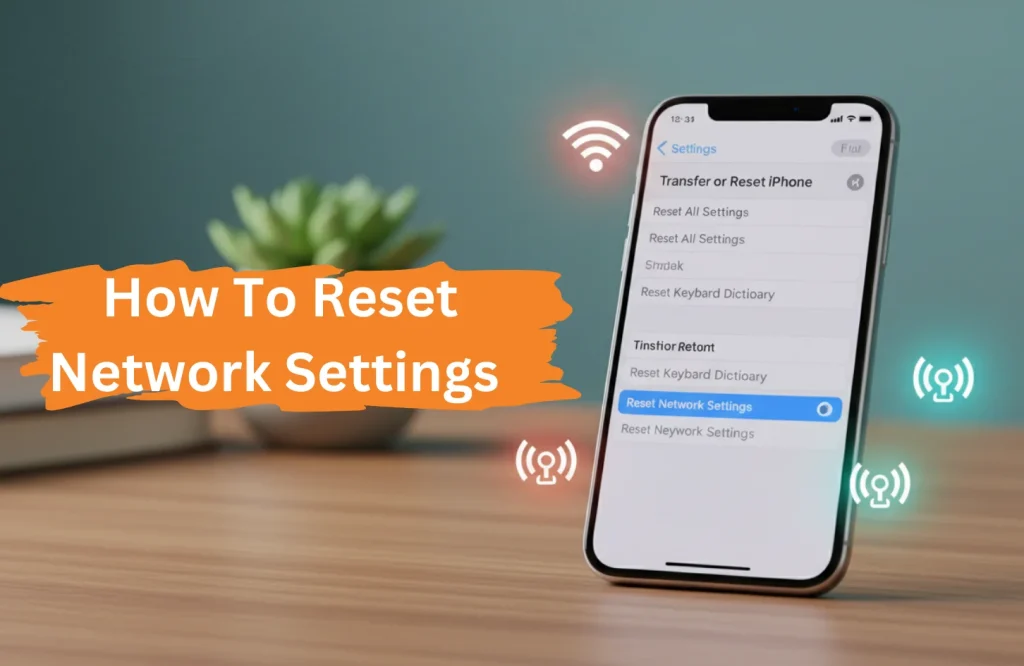
We all have been there trying to get work done and the signal constantly drops or there’s the dreaded “No Service” message. That’s frustrating when your phone refuses to connect to the network.
However, don’t panic and run to the repair shop immediately as there are simple solutions which you can try to solve the issues. And the best part is you don’t need to worry about losing photos, apps or even important data. Now in this article lets know everything about how to reset the network. Let’s dive in:
What Happens When You Reset Network Settings
Resetting your phone’s network isn’t as scary as you think but you should know what you are going to do. As when resetting the network even though your personal data are not deleted but still your saved WI-Fi passwords, VPN configurations and even saved bluetooth connections get removed. So basically your phone removes or forgets any kind of network it was ever connected to.
Just think of it like your phone network is starting from a clean slate.You will need to connect with previous devices again to have access to them. That’s why make sure you have your Wi-Fi passwords handy before you even start.
Also your device name will reset to “iPhone” instead of the custom name whatever you gave it. Manually trusted certificates will need to be re-trusted and cellular data roaming might also turn off automatically. But these minor issues are not a big deal especially if your network issue gets solved instead.
Simple Solutions Before Resetting
There are some easy fixes that you can try to do before you start jumping to network reset. As sometimes the easiest solutions might help you from all over starting again.
Check your signal strength
If your phone is far away from the router, move closer to the router. As walls, floors and obstacles could weaken the signal strength, even moving a bit closer could make a big difference in connection quality.
Restart your devices
Switch off your phone completely and then switch it on again. While you are doing so you can also unplug the model and router for 30 seconds. Sometimes this simple restart clears every temporary glitch which causes connection issues.
Toggle Airplane Mode
Open the control panel in the phone, for newer versions phones swipe down from the top right corner , however for the older versions you need to access the control panel. Then you will need to tap on the airplane icon on the phone to activate airplane mode. Wait for a few seconds and then turn it off again. Doing so will force your phone to reconnect to available networks.
Update your iOS
Another quick fix can be to update your software. Check if your iOS is not updated , if not then update your software. To update go to the settings and tap general then software update to check the new version. Oftentimes installing the latest iOS fixes the problem.
If You See SOS, No Service, or Searching on Your iPhone
If you see your phone has “SOS,” “No Service,” or “Searching” at the top of your screen, it’s normal to panic. These messages usually occur when your iPhone can’t connect with the cellular network and you can’t make any calls or use mobile data.
So, if you see this message check if you are in a poor network coverage area, if that’s the cause then understand it might be a dead zone. You might have to move to some other location. If you are indoors try moving outdoors.
Another, silly mistake can happen that your airplane mode could accidentally be turned on. Also for extra cautiousness check if your sim card is inserted properly. Remove the sim gently and wipe it gently with soft cloth. If dirty or loose Sim card i
Make sure Airplane Mode isn’t turned on accidentally. Check that your SIM card is properly inserted and not damaged. Remove it, clean it gently with a soft cloth, and reinsert it carefully. A loose or dirty SIM card can be the cause of connection problems.
One more thing that can be the reason if you recently traveled internationally, then your phone might be stuck in the foreign network. Go to settings then go to cellular data options to make sure that your Data Roaming Options is on.
Also check if your network provider is active and there’s no service outage in the area. As there might not be any issue in your phone at all it might be the network provider’s issue.
How to Reset Network Settings on iPhone XS Max, 11, 12, 13
The process of resetting the network is almost the same in all the iPhone models. Whether it’s XS Max or newer iPhone 17 , you can follow the steps in this article to reset your network settings.
For iPhone running iOS 15 or later:
For iOS 15 or later ones open the settings in and scroll down to the general. Then tap the transfer or reset option in the bottom of the screen. When you see you will notice several resets buttons. To reset the network, you will need to press reset network settings from the list.
To confirm that you will need to enter password as a security step to prevent you from accidental network reset. When you reset your network you will need to re enter your wifi passcodes and bluetooth devices.
For iPhone running iOS 14 or earlier:
Open Settings and tap General. Scroll down and tap Reset. Select Reset Network Settings from the options. Enter your passcode when asked and confirm that you want to reset.
After the reset completes, your iPhone will restart. Give it a minute to boot up completely before trying to connect to networks again.
Reconnecting After the Reset
Once your network settings are reset, you’ll need to set everything up again. Start with Wi-Fi by going to Settings and tapping Wi-Fi. Find your home network in the list and tap it. Enter your password carefully and tap Join.
For cellular settings, most carriers automatically configure everything correctly. But if you notice issues with mobile data, go to Settings, tap Cellular, and make sure Cellular Data is turned on. You might also need to enable LTE or 5G depending on your plan.
Bluetooth devices need to be paired again too. Go to Settings, tap Bluetooth, and make sure it’s turned on. Put your devices in pairing mode and select them from the list when they appear.
If you use a VPN for work or privacy, you’ll need to reconfigure it. Download your VPN app again if necessary and enter your login credentials to reconnect.
Why Your iPhone Has Network Problems
Understanding what causes network issues helps you prevent them in the future. Sometimes it’s just a temporary glitch with iOS that a simple reset fixes. Software updates can occasionally introduce bugs that affect connectivity.
Physical damage to your iPhone can also cause network problems. If you’ve dropped your phone or exposed it to water, internal components might be damaged. The antenna or other hardware could be affected, which requires professional repair.
Carrier settings updates sometimes don’t install correctly, causing connection issues. Your SIM card might be old, damaged, or not properly seated in the tray. Even switching to a new carrier without properly updating settings can cause problems.
Corrupted network configurations from problematic Wi-Fi networks or VPN apps can mess with your phone’s ability to connect properly. That’s why resetting network settings often fixes these issues by clearing out the corrupted data.
When to Seek Professional Help
If you have all that you could and followed our steps yet your iPhone isn’t connecting properly then that might be a hardware issue. Check if there’s any physical damage like antenna or board logic problems or even faulty sim cards. All these might professional help so seek professional diagnosis and repair.
Don’t keep struggling with a phone that won’t connect when expert help is available. Like Apple Gadgets Care, where skilled technicians fix iPhone connectivity problems by finding the source of the problem. They can fix your iPhone whether it’s a software problem or a hardware problem.
Professional service centers can run tests on your device to find out exactly what’s wrong with it. Delivery on time keeps your life moving forward without any extra delays. Every repair is done with clear communication and a focus on making the customer happy. When you need it most, quality iPhone repair is easy to get because of low prices.
FAQ
Will resetting network settings delete anything?
No, only network configurations like Wi-Fi passwords, VPN settings, and Bluetooth pairings are removed; your photos, apps, and personal data remain safe.
Does resetting network settings on the iPhone remove eSIM?
No, resetting network settings does not delete your eSIM; you can only remove eSIM through the Delete All eSIMs option in Reset settings.